

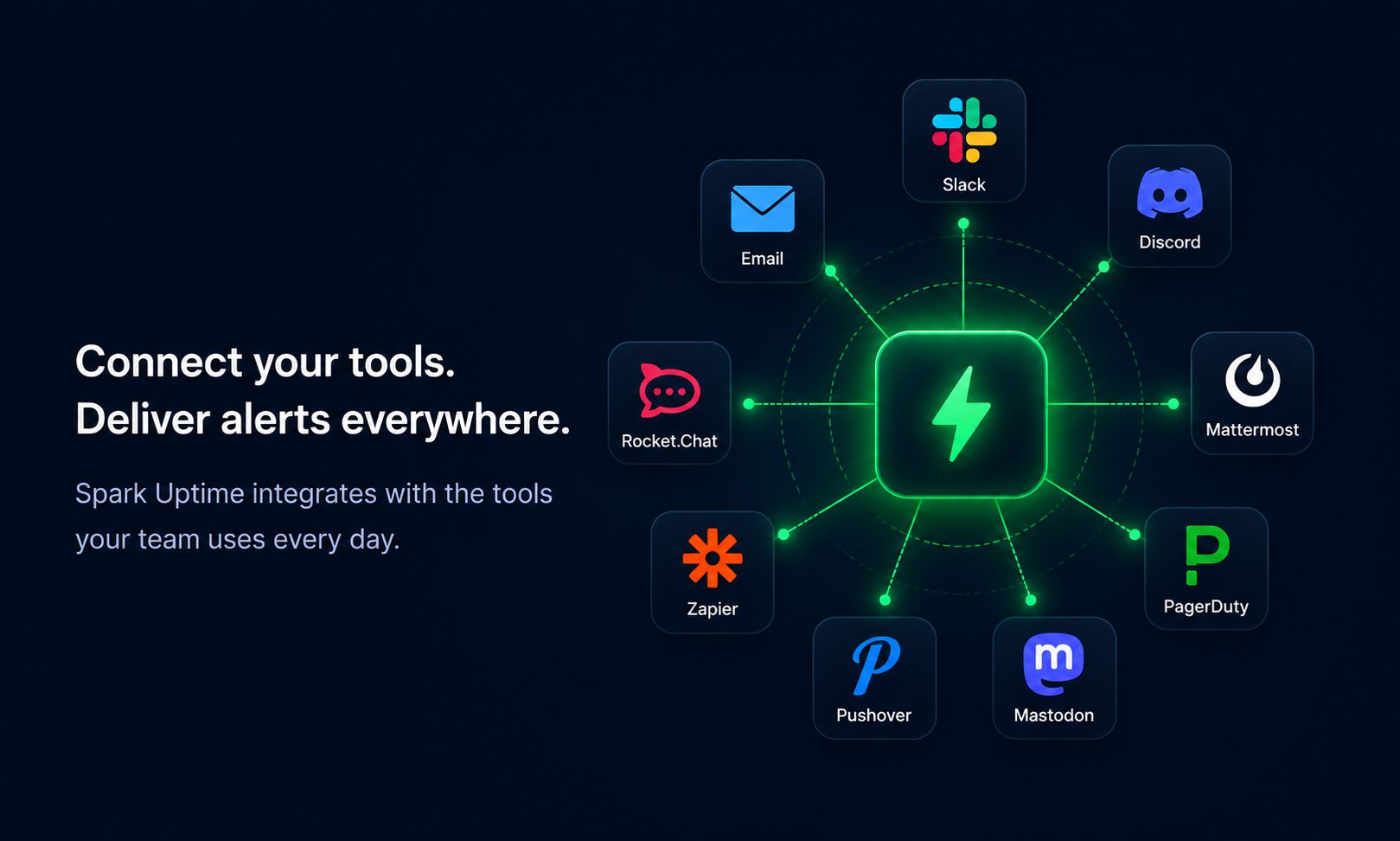
Integrations allow Spark Uptime to send monitor alerts to the communication channels, incident response tools, and automation platforms your team relies on every day.
After an integration is created, assign it to one or more monitors so alerts are delivered based on the notification rules you choose.
Create a new integration
Create integrations from the Integrations page in your Spark Uptime account. Each integration type includes the fields required for that specific provider.
Open Integrations
Log in to your account and open the Integrations page from the dashboard menu.
Choose the integration type
Click Create New next to the integration type you want to configure.
Enter required details
Enter a nickname and complete any required fields, such as an email address, webhook URL, API key, or token.
Choose the notification type
Select which alerts should be sent through this integration.
Save the integration
Click Create to save the integration and make it available for monitor assignments.
Available integrations
Spark Uptime supports 10+ integration types for alert delivery, incident response, automation, and team communication.
Send alerts directly to an email inbox or team distribution address.
Slack
Deliver alerts to Slack channels using your configured Slack destination.
SMS
Send monitor notifications via SMS to any US 10 digit phone number.
Discord
Send monitor notifications to Discord channels for operational visibility.
Mattermost
Route alerts into Mattermost workspaces used by your team.
PagerDuty
Connect monitor alerts to your incident response and escalation workflow.
Mastodon
Publish monitor events through a configured Mastodon integration.
Pushover
Receive alert notifications through Pushover-supported devices.
Zapier
Connect Spark Uptime alerts to automated workflows and third-party tools.
Rocket.Chat
Deliver monitor alerts into Rocket.Chat channels used by your team.
Webhook
Send alert payloads to custom endpoints, scripts, and internal systems.
Pushbullet
Send monitor notifications through Pushbullet-supported destinations.
View and manage integrations
From the dashboard, open Integrations to view all configured integrations, the number of assigned monitors, and available management actions.
Pause
Temporarily stop an integration from sending notifications without deleting its configuration.
Resume
Reactivate a paused integration so assigned monitors can send alerts again.
Delete
Permanently remove an integration after confirming the action. Deletion cannot be reversed.
Assign an integration to a monitor
Integrations must be assigned to a monitor before that monitor can send alerts through the selected destination.
Open the monitor
Click the monitor nickname or select Manage from the monitor list.
Select an integration
In the left panel under Integrations, choose an integration from the dropdown menu.
Add the integration
Click Add Integration to attach the selected integration to the monitor.

Remove an integration from a monitor
You can detach an integration from a monitor without deleting the integration from your account.
- Open the monitor detail page.
- Find the Integrations section.
- Click Remove next to the integration you want to detach.